
Portfolio Monitoring: Basics
How to understand, configure, and get started with Baselayer Portfolio Monitoring
1. Overview: Why Portfolio Monitoring Matters
Most KYB and underwriting workflows capture a single moment in time, but businesses change continuously.
A business may:
- Change its name, officers, address, or standing
- Accumulate liens, litigations, or bankruptcies
- Trigger sanctions or PEP flags
- Alter its website, web presence, or operational footprint
- Show new identity-network signals (e.g., increased application volume)
Regulators expect ongoing customer monitoring, not just onboarding checks.
Under the U.S. Customer Due Diligence (CDD) Rule, financial institutions must perform:
Ongoing monitoring to identify and report suspicious activity and, on a risk basis, to maintain and update customer information.
Portfolio Monitoring solves this by transforming KYB/underwriting from a point-in-time event into a continuous, automated monitoring workflow.
What Portfolio Monitoring Does
Once a business is added to your Portfolio, Baselayer:
- Monitors the business on a defined frequency
- Captures snapshots of its full profile
- Detects changes between snapshots
- Produces human-readable change summaries
- Sends digest notifications on your chosen schedule
- Stores a complete history of all changes
2. Glossary
Portfolio
Your organization’s full set of monitored businesses.
Every Baselayer customer has exactly one Portfolio.
Portfolio Item (Item)
A single business added to the Portfolio, created from a completed Baselayer Business Search.
Each Item stores its full monitoring history, snapshots, and notifications.
Group (Portfolio Group)
A one-level folder used to organize Portfolio Items (e.g., by risk tier, geography, product type, or ownership).
Groups can have their own Monitoring and Notification Policies.
Monitoring Policy
Defines what to monitor and how often.
A Monitoring Policy includes:
- Frequency (daily → annually)
- Monitorable attributes (e.g., liens, litigations, OFAC, PEP, website changes, officers, registration standing)
- Enabled/disabled state
- Lien monitoring scope (domestic vs. registered states)
- Inheritance metadata (
inherited_from)
Every Portfolio Item is covered by exactly one Monitoring Policy inherited from:
Portfolio → Group → Item
Notification Subscriptions
Define what changes should generate email notifications, how often, and to whom.
Includes:
- Notifiable attributes
- Frequency
- Recipient email addresses
- Enabled/disabled state
A Portfolio Item may be covered by multiple Notification Subscriptions.
Monitorable Attributes
What Baselayer can look for changes in:
- Business profile fields (officers, addresses, SoS standing, names)
- Liens
- Litigations
- Bankruptcies
- Website analysis
- PEP
- OFAC
- Identity network
Notifiable Attributes
Changes that can be included in email summaries:
- New registrations
- SoS Standing changes
- Address changes
- Officer changes
- Name changes
- KYB / Risk score changes
- New liens, litigations, bankruptcies
Monitoring ≠ notifying.
You can monitor more attributes than you notify on.
Cadence/Frequency
How frequently a policy runs:
- daily
- weekly
- biweekly
- monthly
- quarterly
- biannually
- annually
Snapshot
A point-in-time capture of the business profile.
Change
The difference between two snapshots.
Includes both machine-readable and human-readable formats.
Notification
A digest email summarizing noteworthy changes, delivered based on the Notification Subscription frequency.
3. How Portfolio Monitoring Works
Baselayer’s monitoring engine operates like version control for business data.
Step 1: Capture a Snapshot
On the Monitoring Policy cadence/frequency, Baselayer stores a complete snapshot of the business profile and all selected monitorable attributes.
Step 2: Detect Changes
Baselayer compares two snapshots to detect:
- Attribute changes
- New or removed information
Step 3: Store a Complete History
Snapshots and detected changes are permanently stored and available through:
- Console
/portfolio/items/{id}/changes/portfolio/updates- Snapshot and diff endpoints
Step 4: Generate Notifications
Changes are turned into readable digest emails, delivered on the Notification Subscription cadence/frequency.
Step 5: Repeat Automatically
Monitoring continues indefinitely based on your policies.
4. Understanding Portfolio, Group, and Item Policies
Before configuring anything in the Console, it is essential to understand how Monitoring Policies and Notification Subscriptions are structured.
These rules determine what is being monitored, how often, and who receives updates — at every level of your organization.
Baselayer uses a simple inheritance model:
Portfolio → Group → Item
Monitoring Policies inherit downward, while Notification Subscriptions stack.
4.1 Monitoring Policy Inheritance
Every Portfolio Item is covered by exactly one Monitoring Policy.
This policy may come from:
- The Portfolio default policy (applies to all Items unless overridden)
- A Group-level policy (applies to all Items in that Group)
- An Item-level policy (applies only to that one Item)
The inheritance chain works as follows:
Portfolio Policy (default)
→ Group Policy (optional override)
→ Item Policy (optional override)
- If a Group does not define a Monitoring Policy, it inherits the Portfolio default
- If an Item does not define a Monitoring Policy, it inherits from its Group (or the Portfolio, if no Group override is set)
- If an Item defines its own policy, it overrides everything above it
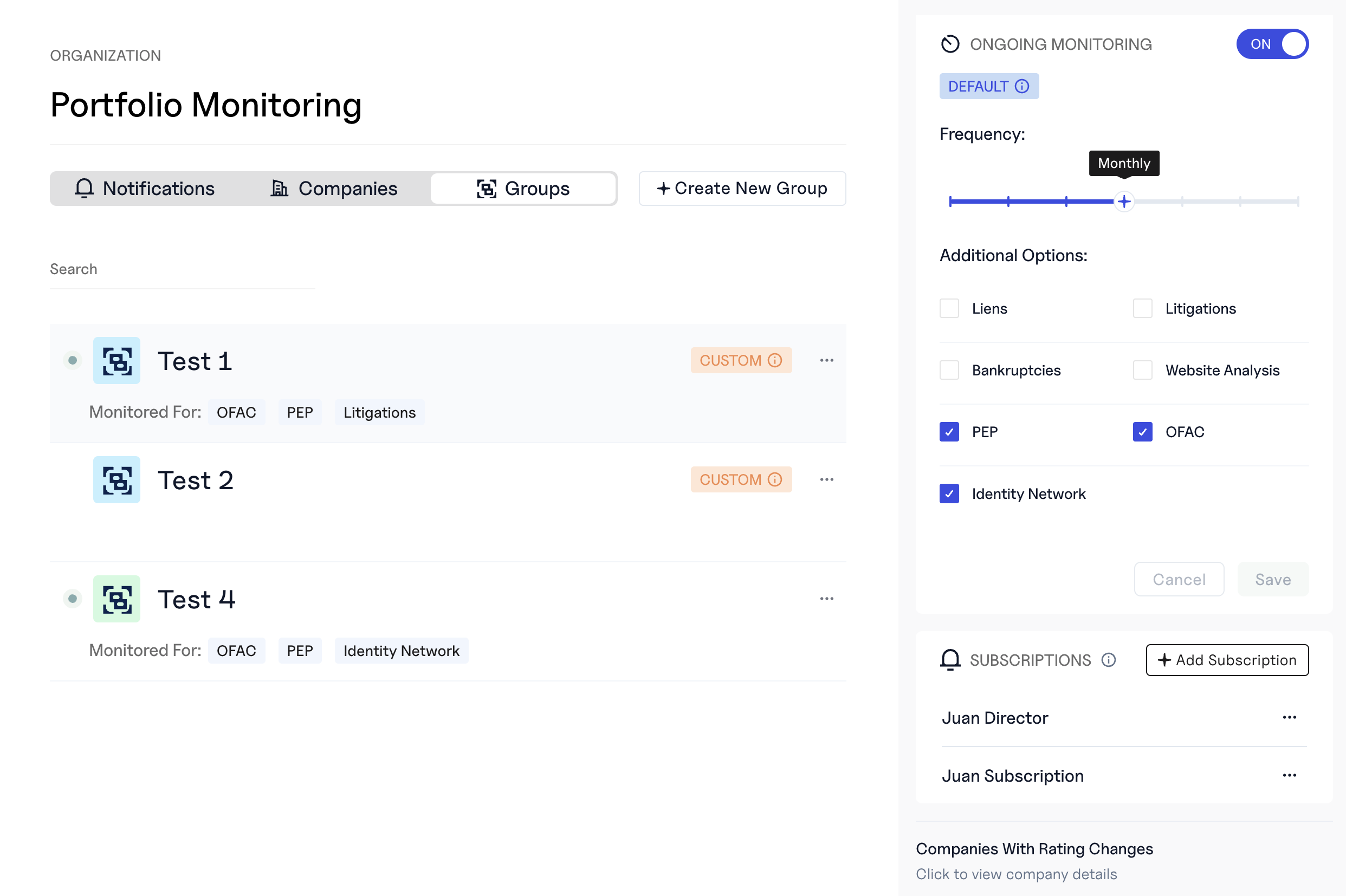
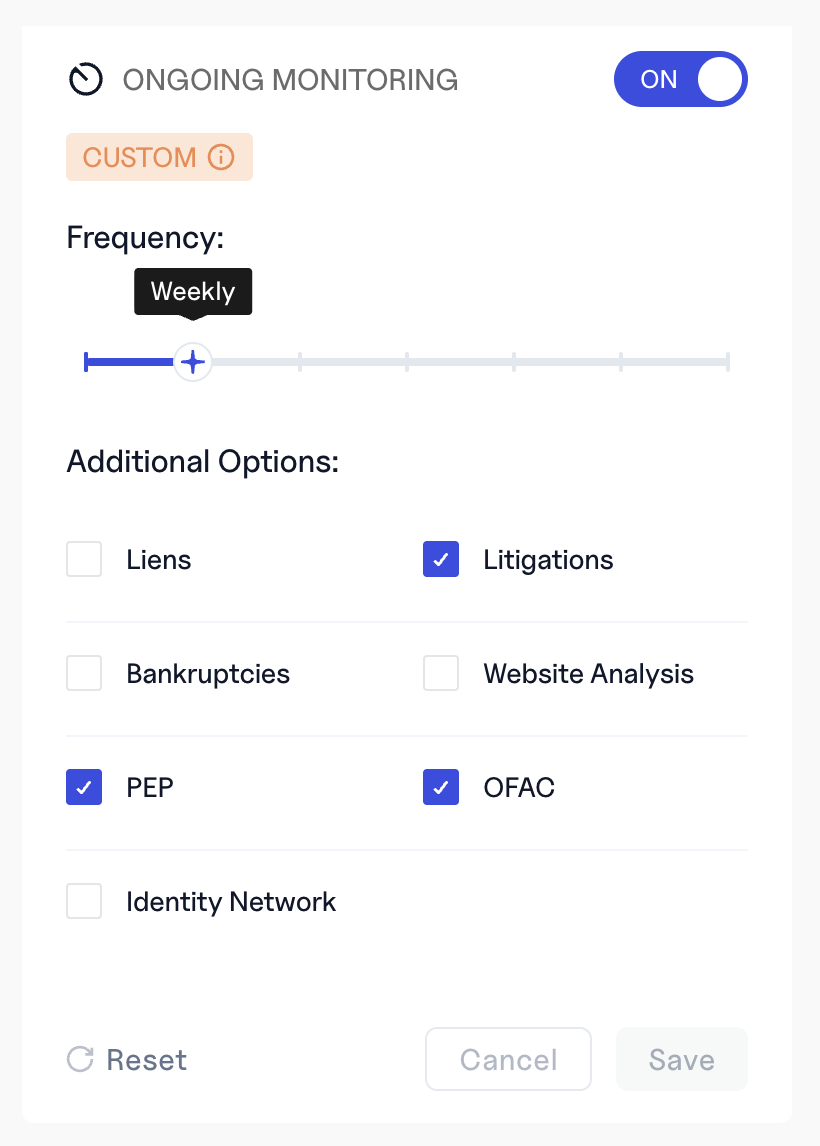
What “Default” vs “Custom” Means in the UI
In the Console:
- A policy labeled DEFAULT → the Item or Group is using an inherited policy
- A policy labeled CUSTOM → the Item or Group has its own override
You will also see a green dot next to Groups that are actively monitored under a valid policy.
These labels help you instantly understand which level is controlling the monitoring behavior.
4.2 Notification Subscriptions
Notification Subscriptions follow different rules:
Monitoring Policies → inherited
Notification Subscriptions → stack
A Portfolio Item may receive notifications from:
- Portfolio-level subscriptions
- Group-level subscriptions
- Item-level subscriptions
All applicable subscriptions apply together.
Example:
If you set:
- A Portfolio subscription for monthly business-profile digests
- A Group subscription for weekly litigation alerts
- An Item subscription for daily OFAC updates
Then that Item will receive:
- Monthly digest
- Weekly litigation alerts
- Daily OFAC alerts
Subscriptions never override each other - they are additive.
4.3 Policy Scopes: What Each Level Is For
Portfolio Level
Use for settings that should apply to most or all customers in your book.
Typical examples:
- Monthly monitoring for all SMB customers
- Weekly PEP/OFAC notifications for compliance teams
Group Level
Use when different segments of your portfolio require different monitoring behaviors.
Examples:
- High-risk businesses monitored weekly
- Term-loan groups monitored monthly
- Marketplace vendors monitored only for sanctions
Group-level overrides simplify operations for large portfolios.
Item Level
Use sparingly, for edge cases:
- A single business under review
- A VIP customer requiring more frequent monitoring
- A business generating too many changes (throttling)
If an Item has a CUSTOM policy, it will remain independent until reset.
4.4 Resetting Inheritance
At both the Group and Item levels, you may click Reset in the Console to:
- Remove the custom override
- Restore inherited settings from the parent level
The UI will change from CUSTOM → DEFAULT, signaling that inheritance is active again.
4.5 Why Understanding This Matters Before Configuration
When configuring the default Portfolio Monitoring Policy, keep in mind:
- All Groups and Items will inherit it unless they already have CUSTOM overrides
- If you change the Portfolio default, Groups with overrides will not be affected
- Item-level overrides may cause unexpected monitoring patterns if not tracked
- Notification subscriptions apply across multiple levels, so planning prevents duplication or noise
Learning the inheritance model first ensures that your monitoring setup is clean, consistent, and easy to maintain - especially as your portfolio grows.
5. Setting Up Portfolio Monitoring (Console)
This section explains how to configure monitoring using the Baselayer Console.
Before setting any policies in the Console, remember how inheritance works:
- The Portfolio-level policy becomes your default baseline for all items
- Groups can override this policy for all items they contain
- Items can override both the Group and Portfolio defaults
- Notification Subscriptions stack, while Monitoring Policies inherit
With this structure in mind, you can now configure the correct level of monitoring for your use case.
Step 1: Ensure Portfolio Monitoring is Enabled
If you don’t see "My Portfolio" section in the Console, contact your Baselayer representative.
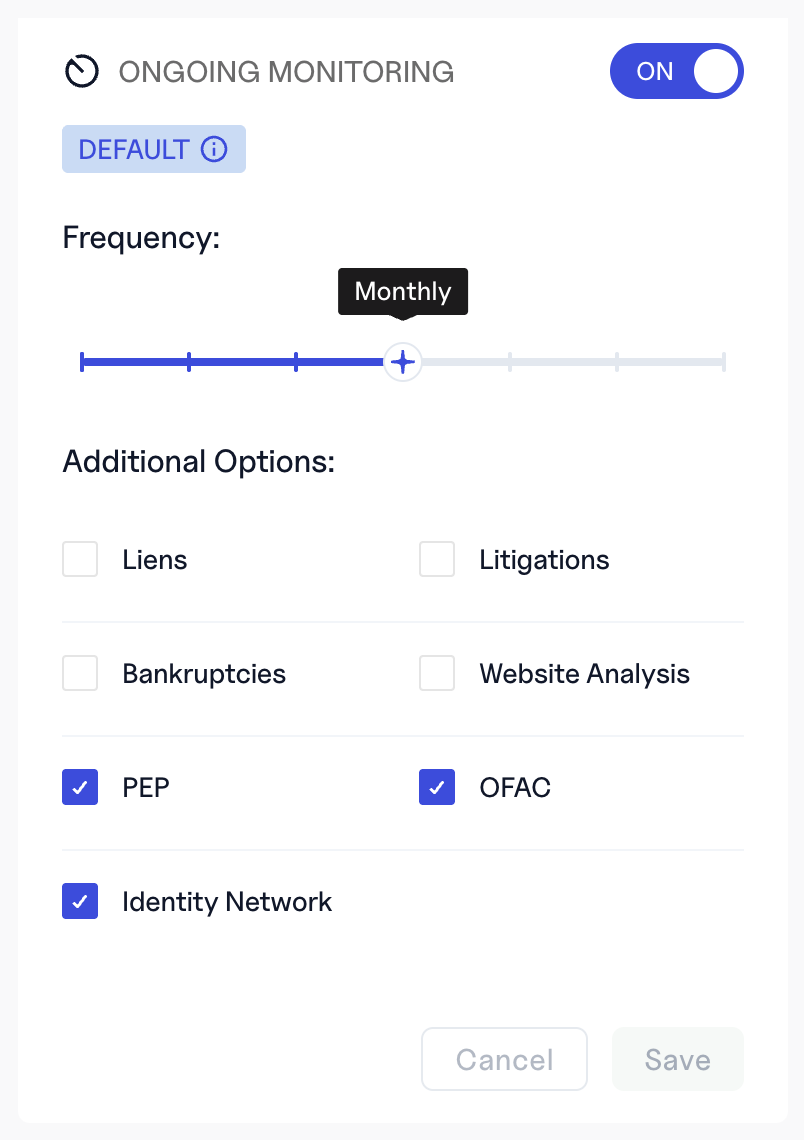
Step 2: Configure the Default Monitoring Policy
Navigate to: Console → My Portfolio → Ongoing Monitoring (top-right)
Configure:
- ON/OFF
- Frequency
- Monitorable attributes
- Business profile fields (officers, addresses, SoS standing, names) are monitored by default
This becomes your Portfolio’s default Monitoring Policy.
Step 3: Create Portfolio Groups (Optional)
Groups help you structure your book of businesses.
Common examples:
- High-Risk Portfolio
- Standard SMB Lending
- Vendor Risk
- Term Loans
- MCA
- Team ownership
Groups can optionally have their own Monitoring Policies and Notification Subscriptions, which override the Portfolio default for all Items in that Group.
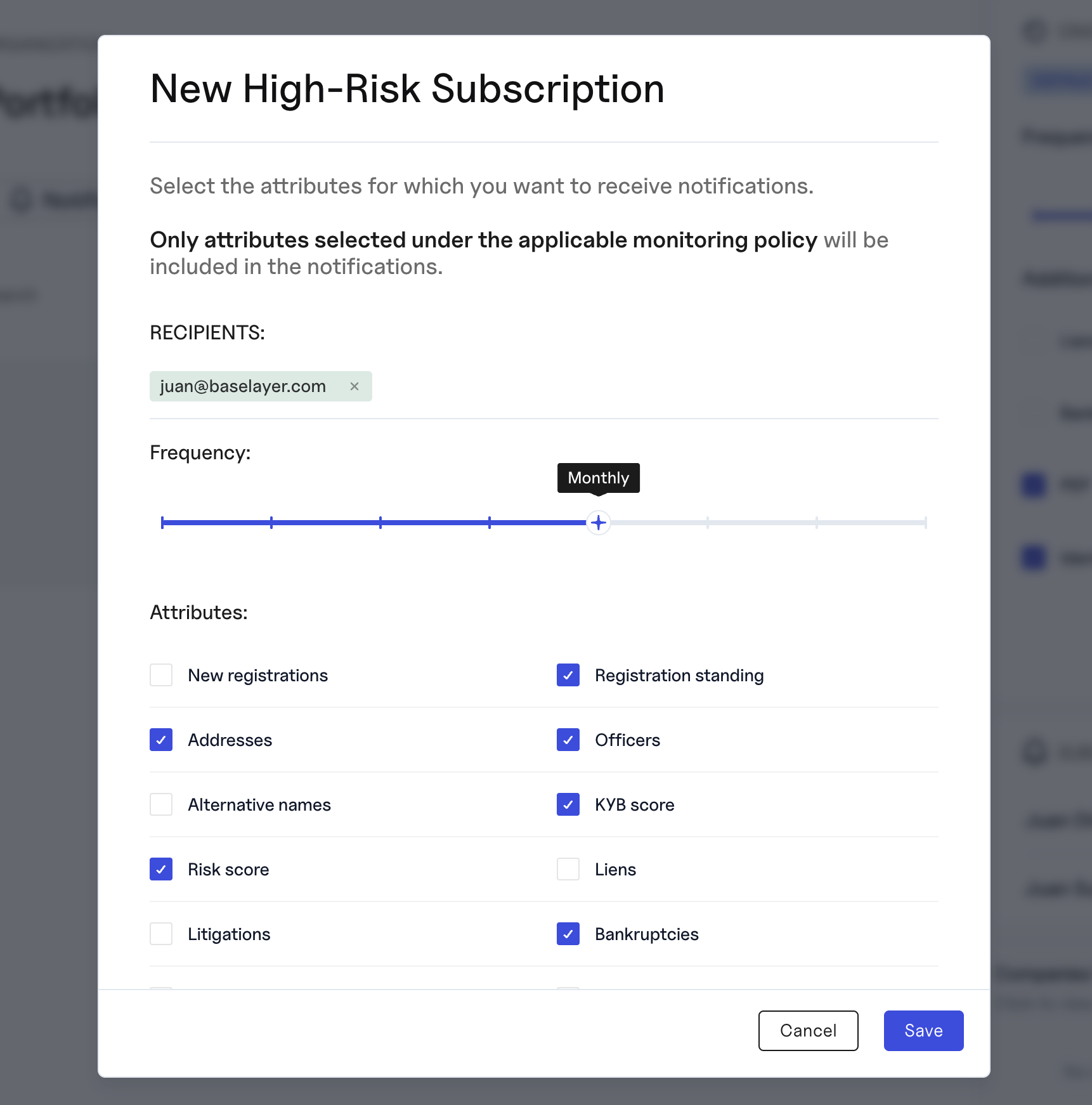
Step 4: Configure Notification Subscriptions
Navigate to: Console → My Portfolio → Subscriptions (bottom-right)
Configure:
- Email recipients
- Frequency
- Notifiable attributes
Common examples:
- Daily litigation/bankruptcy alerts
- Weekly business profile digest
- Monthly officer/standing overview for compliance
Step 5: Add Businesses to Your Portfolio
From a completed Business Search:
- Click Add to Portfolio (top-right)
- Select a Group (optional)
- Monitoring begins automatically at the next frequency boundary
Or via API:
POST /portfolio/items
{
  "business_search_id": "uuid"
}
6. How Monitoring Runs
Portfolio Monitoring follows a simple but powerful lifecycle. Once a business is added to your Portfolio, Baselayer automatically begins tracking it according to your effective Monitoring Policy (Portfolio → Group → Item).
6.1 Monitoring Frequency: When Baselayer Checks for Changes
The monitoring frequency determines how often Baselayer takes a new snapshot of the business profile. This snapshot includes:
- Core business registration data
- Officers, addresses, names, standing
- Any selected monitorable attributes (e.g., OFAC, PEP, Liens, Litigations, Website Analysis)
Frequencies range from daily to annually, depending on your policy configuration.
Exact Timing Rules
Monitoring runs follow fixed, predictable system schedules:
- Daily cadence → snapshot created every day at 9:00am ET
- Weekly cadence → snapshot created every Monday at 9:00am ET
- Monthly cadence → snapshot created on the first Monday of each month at 9:00am ET
- Quarterly cadence → snapshot created on the first Monday of each quarter at 9:00am ET
- Other cadences → follow the same pattern of running on the first applicable Monday at 9:00am ET
If an Item is added after the most recent cadence boundary, its first snapshot will occur at the next scheduled run, not immediately.
6.2 Detecting and Storing Changes
On each run:
- Baselayer captures a fresh snapshot
- The system compares it to the previous snapshot
Any differences are converted into structured “changes” (diffs)
- Changes are stored permanently and appear in the Console under the business’s history
This creates a full audit trail of how the business evolves over time.
6.3 Notification Frequency: When You Receive Updates
Notifications run on their own frequency, which may be different from the monitoring frequency.
A Notification Subscription determines:
- Which attributes to notify on
- How often digest emails are delivered
- Who receives them
Because Notification Subscriptions stack, a single business may be included in:
- A Portfolio-level weekly digest
- A Group-level daily litigation digest
- An Item-level monthly officer-change digest
Monitoring Frequency vs. Notification Frequency
Monitoring frequency controls when snapshots are taken.
Notification frequency controls when digest emails are sent.
These two systems are independent.
This means:
- If you configure monthly monitoring but daily notifications,
→ you will receive daily emails with no changes until the monthly snapshot occurs. - If you configure notifications for an attribute (e.g., liens) but do not include that attribute in the Monitoring Policy,
→ Baselayer cannot notify you about it, because it is never collected in snapshots.
Monitoring always comes first.
Notifications can only summarize what was monitored.
To receive reliable notifications for an attribute, ensure:
- The attribute is included in the Monitoring Policy, and
- The Notification Subscription includes that attribute
6.4 Effective Policy Resolution
Each Portfolio Item always has:
- One effective Monitoring Policy (inherited from Portfolio → Group → Item)
- Zero or more Notification Subscriptions
Baselayer automatically resolves inheritance to determine which schedules and rules apply.
Example
- Monitoring frequency: weekly
- Notification frequency: weekly
- Item added on Tuesday → first monitoring run and first snapshot occur on the next scheduled weekly run boundary
Changes then appear in:
- Console → Updates (Portfolio-wide view)
- Console → Changes (per-item or per-group history)
- Digest emails (if the relevant Notification Subscription is enabled)
This workflow ensures timely detection of relevant business changes while keeping noise and operational overhead low.
7. Working With Groups
Groups allow you to structure your monitoring program.
Groups inherit the Portfolio Monitoring Policy by default.
When you assign a custom policy to a Group, all Items in that Group follow the Group’s policy unless they have their own Item-level override.
Groups are therefore the best way to control monitoring behavior at scale without touching individual Items.
Why Use Groups?
- Different cadences/frequencies by risk level
- Different Monitoring Policies by product
- Different notification schedules by team
- Cleaner operational ownership
Example Configurations
High-Risk Businesses
- Weekly monitoring
- Daily notifications for litigation/bankruptcy/sanctions
Standard SMB Lending
- Monthly monitoring
- Weekly notifications for officer/standing changes
Marketplace / Vendor Risk
- Weekly sanctions-only monitoring
- Monthly business profile monitoring
8. What’s Next
After learning the basics, continue with:
Portfolio Monitoring: API Quickstart
Covers how to:
- Programmatically add items
- Fetch updates
- Retrieve snapshots & diffs
- Build automated workflows
Portfolio Monitoring: Best Practices
Covers how to:
- Choose cadences/frequencies
- Reduce noise
- Design monitoring workflows
- Structure Groups
- Manage notifications by team
9. Summary
Portfolio Monitoring turns Baselayer KYB into continuous oversight:
- Automatic monitoring
- Comprehensive snapshots
- Change detection
- Digest notifications
- Full audit trail
- Compliance support for ongoing CDD
- Reduced operational risk
With minimal setup, Portfolio Monitoring becomes a powerful, automated layer in your KYB, underwriting, compliance, and vendor-risk operations.
Updated 9 months ago