
Guide: Exporting PDF Reports
Exporting PDF Reports in Baselayer
Baselayer generates comprehensive PDF reports for any completed Business Search. These reports include all verification results and ordered add-ons (Website Analysis, Industry Prediction, Liens, Litigation) in a single document - ideal for underwriting files, compliance documentation, and audit trails.
This guide covers how to export PDFs through both the Console and API. For understanding what data appears in Business Search results, see Business Search: Basics. For verification workflows that lead to PDF export, see Business Search: Best Practices.
Prerequisites
Before exporting a PDF report, ensure:
- Business Search is completed - PDFs can only be generated for searches with
state: COMPLETED - Search results are available - You have the search ID from a completed Business Search
- API key (for API exports) - See Authentication
Note: PDFs include only the products and add-ons that were ordered with the original search. If you didn't request Website Analysis or Liens during the search, they won't appear in the PDF.
1. What the PDF Report Contains
Each PDF export is a comprehensive snapshot of the Business Search results at the time of generation.
Core KYB Data (Always Included)
Every PDF report contains:
- Business Identity
- Legal business name and structure, registration details and standing
- Verification Signals
- Business name, address, TIN, officer and website match level (if all provided)
- Risk Assessment
- KYB and Risk Ratings (A-F scale)
- Business Profile
- Addresses, officers and registered agents, registrations, watchlist screening results
Optional Add-Ons (If Ordered with Search)
The PDF includes additional sections only if these products were requested in the original search:
- Industry Prediction (Order.NaicsPrediction)
- NAICS, MCC, and SIC codes, industry keywords, confidence scores and risk classification
- Website Analysis (Order.WebsiteAnalysis)
- Discovered website URL, domain metadata, legitimacy indicators, information found on site
- Liens (if lien search was conducted)
- UCC filings, tax liens, including details and status
- Litigation & Bankruptcy (if docket search was conducted)
- Court cases and filings, bankruptcy proceedings
Important: To include add-ons in the PDF, they must be ordered when you create the Business Search using the options parameter. You cannot retroactively add products to an existing PDF.
This makes the PDF a complete, portable record of the entire KYB evaluation as it was performed.
2. Exporting a PDF in the Console
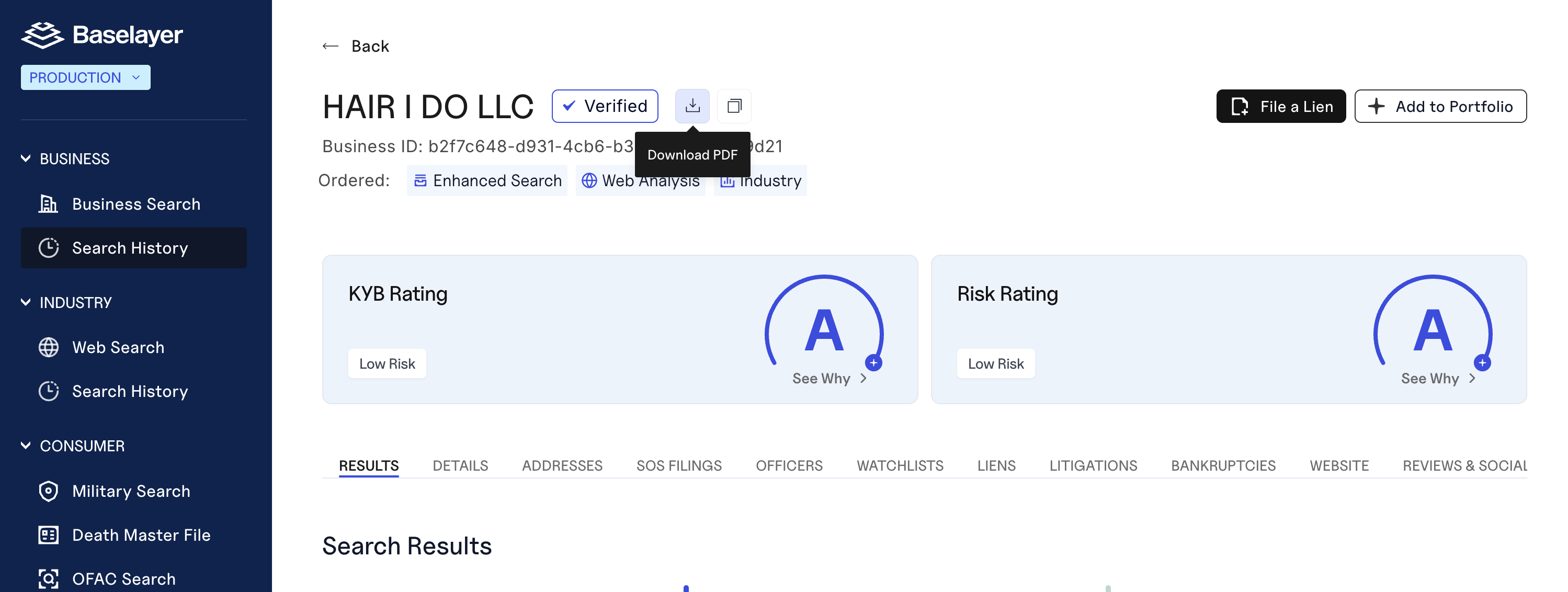
Step 1: Navigate to the Business Search result page in the Baselayer Console
Step 2: Click the Download PDF button (icon) at the top right of the search results
Step 3: The PDF will generate and download to your device automatically
When to use Console export:
- Manual underwriting review
- One-off compliance documentation
- Sharing results with team members who don't have API access
- Quick verification for customer inquiries.
3. Exporting a PDF via API
Generate and download a PDF report programmatically using the export endpoint:
curl --request POST \
  --url https://api.baselayer.com/searches/{search_id}/export \
  --header 'X-API-Key: <API_KEY>' \
  --output business_report.pdf
Path Parameter:
search_id- The unique identifier of the completed Business Search
Response:
- Content-Type:
application/pdf - Binary PDF file (streamed directly to the output file)
Response handling in code:
Python example:
import requests

search_id = "b2f7c648-d931-4cb6-b38d-9db8bf410d21"
response = requests.post(
    f"https://api.baselayer.com/searches/{search_id}/export",
    headers={"X-API-Key": "YOUR_API_KEY"}
)

if response.status_code == 200:
    with open(f"report_{search_id}.pdf", "wb") as f:
        f.write(response.content)
    print("PDF saved successfully")
else:
    print(f"Error: {response.status_code}")
Node.js example:
const fs = require('fs');
const https = require('https');

const searchId = 'b2f7c648-d931-4cb6-b38d-9db8bf410d21';
const file = fs.createWriteStream(`report_${searchId}.pdf`);

const options = {
  hostname: 'api.baselayer.com',
  path: `/searches/${searchId}/export`,
  method: 'POST',
  headers: { 'X-API-Key': 'YOUR_API_KEY' }
};

https.request(options, (response) => {
  response.pipe(file);
  file.on('finish', () => {
    file.close();
    console.log('PDF saved successfully');
  });
}).end();
4. Automating PDF Generation in Your Workflow
Many teams integrate PDF exports directly into their underwriting and compliance workflows. Here are proven automation patterns:
- On Approval/Funding: generate PDFs automatically when applications are approved:
- Batch PDF Export for Audit: export PDFs for all searches in a date range:
- Webhook-Triggered Export: generate PDF immediately when search completes:
Common Integration Points
- CRM/LOS: Attach PDFs to customer records in Salesforce, HubSpot, or loan origination systems
- Document Storage: Save to S3, Google Cloud Storage, Azure Blob, or internal document management
- Compliance Systems: Route PDFs to audit trail systems or regulatory reporting tools
- Manual Review Queues: Attach PDFs to flagged applications for analyst review
- Customer Portals: Provide PDFs to customers for transparency and record-keeping
Because the export endpoint only requires the search ID, integration is lightweight and can be added to any workflow step.
5. Common Issues
"The export API returns 404 Not Found"
Cause: Search ID doesn't exist or you don't have access to it.
Solutions:
- Verify the search ID is correct
- Ensure the search belongs to your organization
- Check that you're using the right API key
"The PDF is missing Website Analysis / Industry data"
Cause: These add-ons weren't requested when the Business Search was created.
Solution:
- Order add-ons must be specified in the original search request using the
optionsparameter - You cannot add products to a completed search
- To include add-ons, create a new Business Search with
options: ["Order.WebsiteAnalysis", "Order.NaicsPrediction"]
"Export endpoint returns 400 Bad Request"
Cause: The search hasn't completed yet (state is still PENDING or EXECUTING).
Solutions:
- Wait for the search to complete before exporting PDF
- Check search status:
GET /searches/{id}/status - Listen for
BusinessSearch.Completedwebhook before triggering PDF export
"PDF generation seems slow"
Expected timing: PDF generation can take up to 30 seconds for reports with many add-ons.
If taking longer:
- Check your network connection
- Verify Baselayer API status at status.baselayer.com
- Contact support if consistently taking >30 seconds
6. Next Steps
Understand what's in the PDF:
- Business Search: Basics - Overview of verification data included in reports
- Scores & Ratings - Interpret KYB and Risk ratings in PDFs
- Web Presence & Orderables - Add Website Analysis and Industry data to future reports
Build automated workflows:
- Webhooks at Baselayer - Trigger PDF export when searches complete
- Batch Searches - Export PDFs for bulk verification results
- Portfolio Monitoring - Generate compliance reports over time
API Documentation:
- API Reference - Complete endpoint specifications
- Authentication - Manage API keys for automation
7. Summary
PDF exports transform Business Search results into comprehensive, portable audit records that include all KYB verification data and ordered add-ons.
Key capabilities:
- Console: One-click download for manual workflows
- API: Programmatic export for automation (
POST /searches/{id}/export) - Complete records: All verification signals, ratings, and add-ons in one document
- Easy integration: Binary PDF response works with any storage system
Use PDF exports to:
- Document underwriting decisions
- Maintain compliance and audit trails
- Automate end-to-end verification workflows
- Share verification results with stakeholders
For help automating PDF exports or integrating with your document management system, contact your Baselayer account manager.
Updated 28 days ago