
Organization Management at Baselayer
How Baselayer partners can independently manage their customers
Introduction
Baselayer allows partners and resellers to autonomously generate profiles for their customers, maintain customers’ data separated, and correctly associate each request with each end user.
This guide serves as a reference point for the implementation of Baselayer across your customer base.
Concepts
- Federation: Institution overseeing the product and integrating directly with Baselayer
- Organization: End customer, who reviews Baselayer results via the partner/reseller
- Application: Environments available for each Organization, each application has its unique API key. Usually 2: production and sandbox (used for testing)
Initial Set-Up
Baselayer will provide you with your federation_id, an initial Federation API key, and access to the dashboard. An initial organization, with the same name as the federation, will also be created immediately.
Once in the platform, you can click on “My Federation” to access the list of existing organizations, the Federation users, and the Federation API keys.
All actions to manage your API keys, including creating new keys or deleting existing ones, can also be completed via the available API routes.
Creating an Organization
To start serving a new customer, you can create a new Organization in the platform or making a POST/organizations request to the API - using your Federation API keys.
There are only 4 fields in the process of creating an Organization:
name(required): name of the organizationdomain_name(optional): email domain associated with the organizationtype(required): type of organization, this field is very relevant for Baselayer’s data quality and personalization, and has a defined set of optionsexternal_id(optional): some of our customers require an internal id to be attached to the profile of each customer for identification purposes - this field is available for that goal
In case of the API request, you will receive a http_201 code in case of a successful response, http_422 in case of a validation error, or http_409 in case the name and/or external_id already exist under your Federation.
Authentication Methods
Any API request at an organization level can be initialized with the Organization's dedicated API keys, or with the Federation API key adding headers.
In the following section we will explore the latter option:
Header: external_id
external_idThis is the preferred methodology.
When using Federation API keys, include the Organization's external_id in your request headers:
X-External-ID: \<external_id>
In case of a request to the sandbox environment, you should include the following as a header:
X-External-ID: \<external_id"-sandbox">
Users
Federation Members
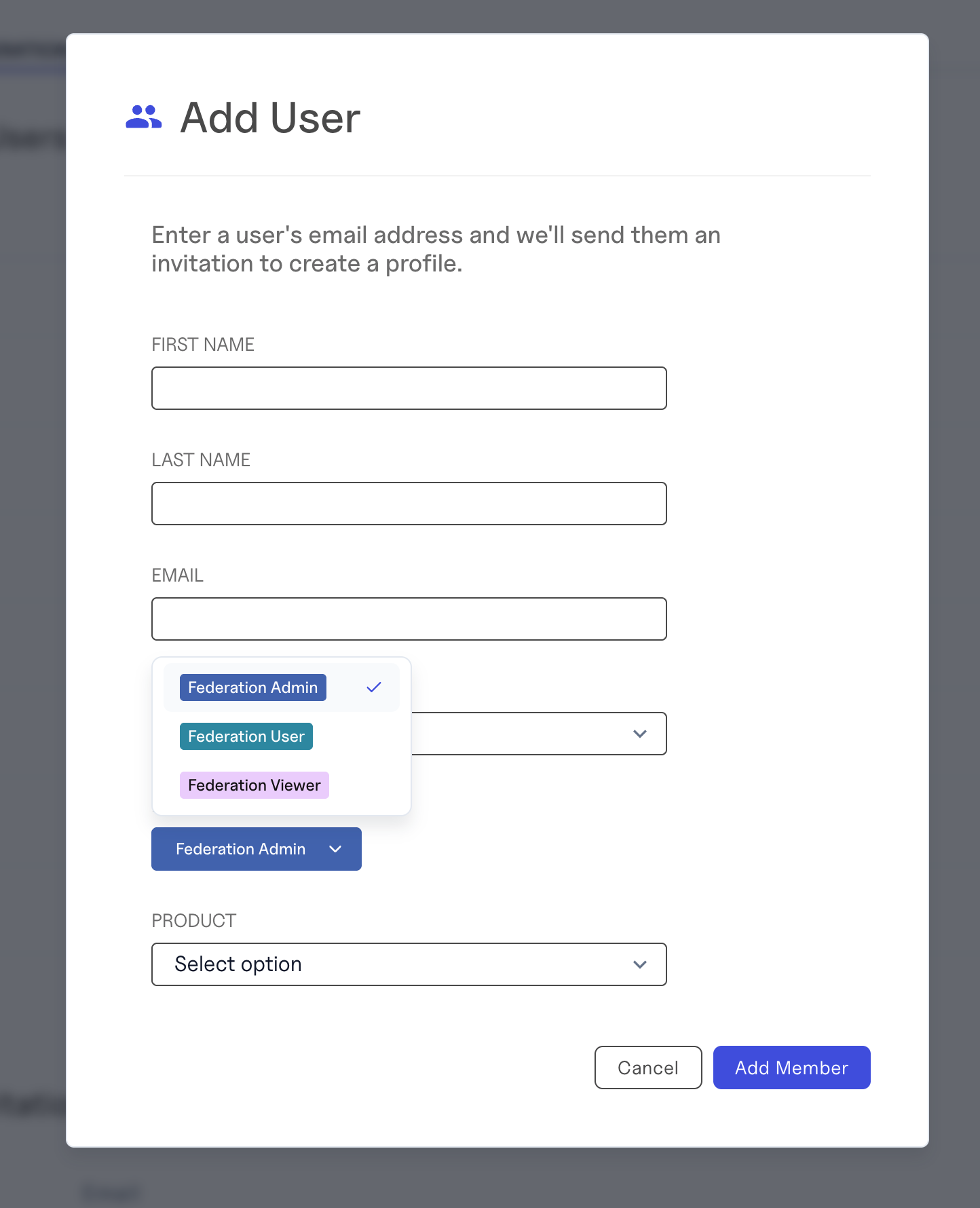
Employees of Baselayer’s partners need to be added directly as “Federation Users”. This will enable them to seamlessly access every organization under the Federation.
You can do so under the menu “My Federation” mentioned above, or via API through the routes available under /federations/{federation_id}/members.
Organization
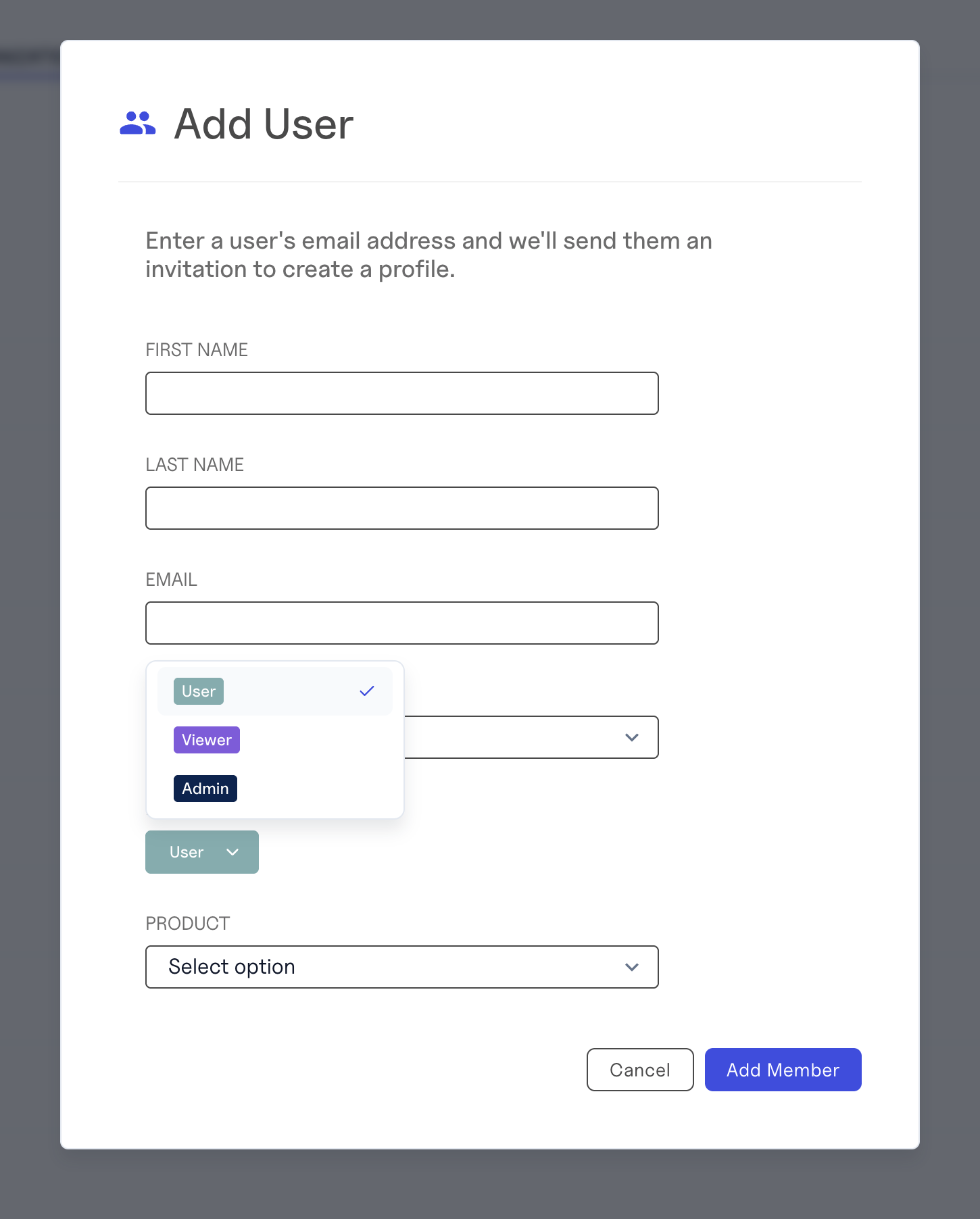
Users of the end customer should be added as part of their specific Organization. Organization users will only be able to access their own dashboard, and only review the cases that were run by their organization.
To perform this action, you can click on “My Organization” in the top-right menu and add them as a new team member.
Federation Webhooks
By default, webhook endpoints in Baselayer are scoped to individual Organizations. For partners managing multiple organizations under a Federation, this would require creating and maintaining a separate webhook endpoint and signing secret per customer, a significant operational burden.
Federation-level webhooks solve this. A single endpoint registered at the Federation level receives events from all organizations under your Federation, across both production and sandbox environments. You manage one signing secret, and use the enriched __event__ metadata to route events to the right customer in your system.
Setting Up a Federation Webhook Endpoint
Federation webhook endpoints can be created via the console or the API, following the same process as organization-level webhooks.
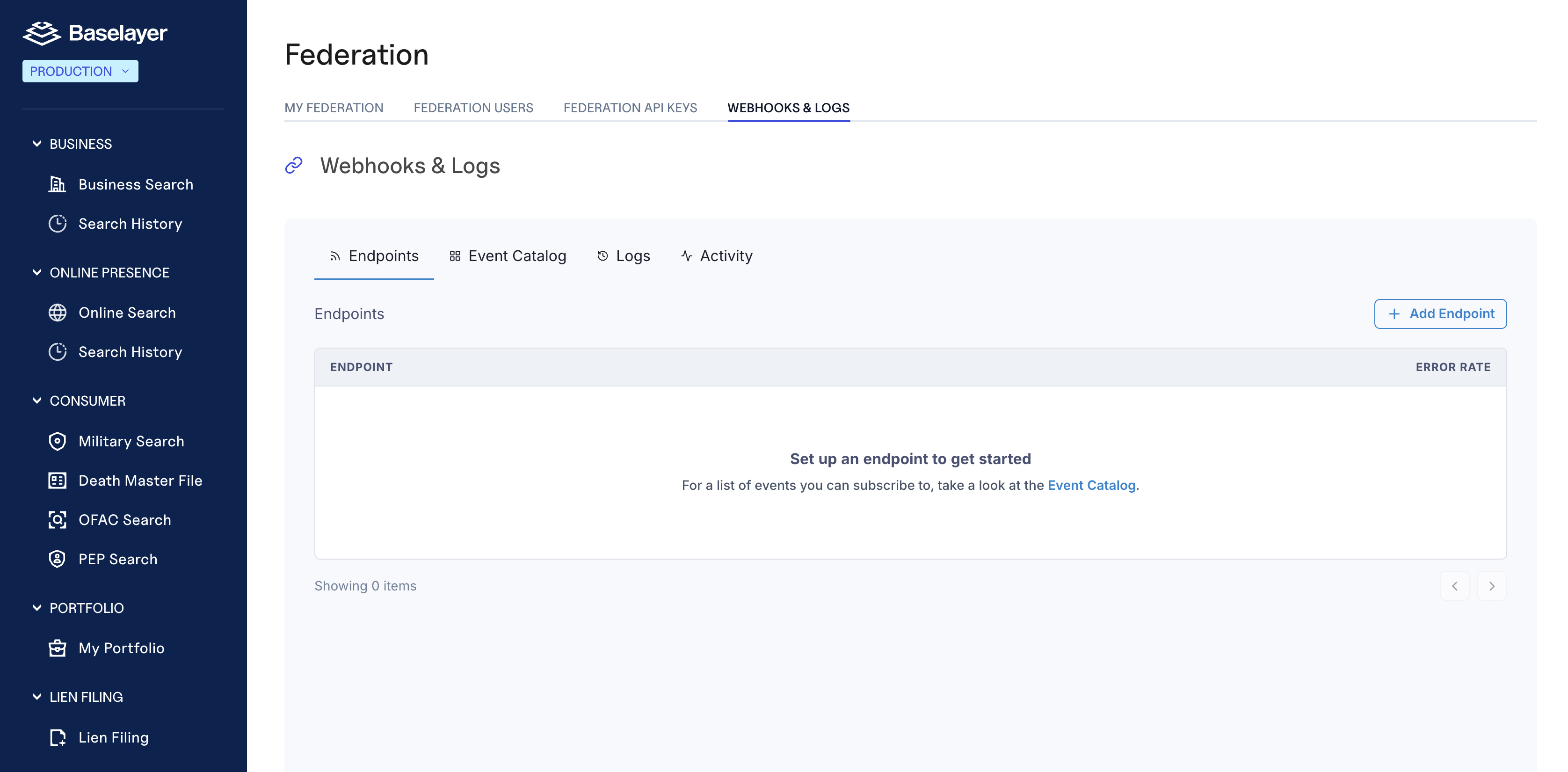
Via Console: Navigate to My Federation and open the Webhooks & Logs tab. Click Add Endpoint, enter your HTTPS URL, configure your channel filters (see below), and save. Copy your signing secret immediately after creation.
Via API: Use your Federation API key and make a POST /webhooks request.
For signing secret setup and verification, follow the same process described in the Webhooks at Baselayer guide.
Channel Filters
Because a Federation webhook receives events from every organization and application, Baselayer provides channel filters to pre-filter delivery before events reach your endpoint. Filters are configured at endpoint creation time and can be combined.
| Channel | Filters to... |
|---|---|
production | Only events from Application.type == 'production' |
sandbox | Only events from Application.type == 'sandbox' |
Organization.<organization_id> | Only events from a specific Organization |
Application.<application_id> | Only events from a specific Application |
Example: To receive only production events from a single organization, set both production and Organization.<organization_id> as channels on your endpoint.
Routing Events with the __event__ Envelope
__event__ EnvelopeEvery Federation webhook payload includes an enriched __event__ object with routing metadata. Use these fields to attribute events to the correct customer in your system.
{
  "__event__": {
    "type": "BusinessSearch.completed",
    "origin": "api",
    "application_id": "fabcf9e0-0c5d-4a8c-b69d-a18df208771b",
    "application_type": "production",
    "organization_id": "c9ffa7fa-13da-4c73-b672-22f1b24c3040",
    "external_id": "97882c6a-b542-4522-b7cb-8757e2d14272"
  },
  "id": "536c0f0e-09d6-403d-8963-767f9bfd06ce",
  "state": "COMPLETED"
}| Field | Description |
|---|---|
type | Event type (e.g. BusinessSearch.completed) |
origin | How the event was triggered (api or dashboard) |
application_id | ID of the Application that triggered the event |
application_type | production or sandbox |
organization_id | Baselayer's internal ID for the Organization |
external_id | Your internal customer ID, passed via X-External-ID at request time |
external_id and application_type are the recommended fields for routing: it maps directly to the customer identifier you control, removing any dependency on Baselayer-internal IDs.
Updated 5 months ago