

Batch Search: How to Run Bulk Searches in Baselayer
Batch Search allows you to process hundreds or thousands of Business Searches at once via CSV upload. It’s the fastest way to onboard large customer lists, refresh existing portfolios, or prepare businesses for Portfolio Monitoring at scale. This guide covers how to run batch searches through both the Console and API. For understanding individual Business Search results, see Business Search: Basics. For adding businesses to monitoring after verification, see Portfolio Monitoring.Prerequisites
Before running a batch search, ensure you have:- CSV file formatted to Baselayer’s schema - Download the example CSV template from the Baselayer Console under Batch Search or here
- API key (for API-based batches) - See Authentication
- Portfolio created (optional, if adding to portfolio) - See Portfolio Monitoring: Basics
1. What Batch Search Does
When you run a Batch Search, Baselayer:- Processes each business in your CSV file as an individual search
- Applies any selected add-ons (Enhanced Search, Industry, Website Analysis, PEP)
- Optionally adds all results to Portfolio Monitoring
- Returns results asynchronously as searches complete
- Stores the full batch record for later review
- Migrating an existing book of business
- Periodic refreshes of a vendor or customer list
- Running KYB on large lead pipelines
- Preparing large sets of customers for Portfolio Monitoring
2. Running a Batch Search in the Console
Navigate to:Console → Batch Search → Upload CSV
- Upload a CSV file (up to 100MB)
- Provide a batch name
- (Optional) Add all businesses to your Portfolio
- (Optional) Monitor all businesses
- (Optional) Add results to a specific Portfolio Group
- (Optional) Enable Enhanced Search, Industry, Website Analysis, or PEP checks
Baselayer provisions additional backend resources to handle large jobs.
This means:
- Most batches begin running within ~3 minutes
- Larger batches may take up to 10 minutes to start
3. Running a Batch Search via API
Use the POST/searches/batches endpoint with a multipart form-data request:
file- Your CSV file (required, max 100MB)batch.name- Descriptive name for this batch (required)batch.portfolio.add_to_portfolio- Add all businesses to portfolio (optional, default: false)batch.portfolio.monitor- Enable monitoring for all businesses (optional, default: false)batch.portfolio.group_id- Portfolio group to add businesses to (optional)options- Array of order options to apply to all searches (optional)
Order.Enhanced- Most comprehensive search with web scrapingOrder.NaicsPrediction- Industry classificationOrder.WebsiteAnalysis- Website discovery and analysisOrder.Pep- Politically exposed persons screening
id to query progress and retrieve results.
Retrieving Batch Status
Query batch progress:4. CSV Format Requirements
Your CSV must follow the official Baselayer schema exactly.The example CSV provided in the Console shows all allowed columns and formatting rules. Required columns:
name- Business legal nameaddress- Full business address (or separate street, city, state, zip columns)
tin- Business EIN/TIN (enables IRS verification)website- Business website URLofficer_names- Comma-separated list of officersphone_number- Business phone numberemail- Business emailreference_id- Your internal ID for this business
- Do not change column headers
- Do not add or remove columns
- Do not reorder columns
- Follow exact address formatting from the template
- Use UTF-8 encoding
- Maximum file size: 100MB
5. Understanding Batch Execution Timing
Batch processing is a timed, asynchronous workflow. Baselayer automatically provisions compute resources for the batch. As a result:- Most batches start processing within 3 minutes
- Very large uploads may take up to 10 minutes before processing begins
- Execution time varies by number of rows and selected add-ons
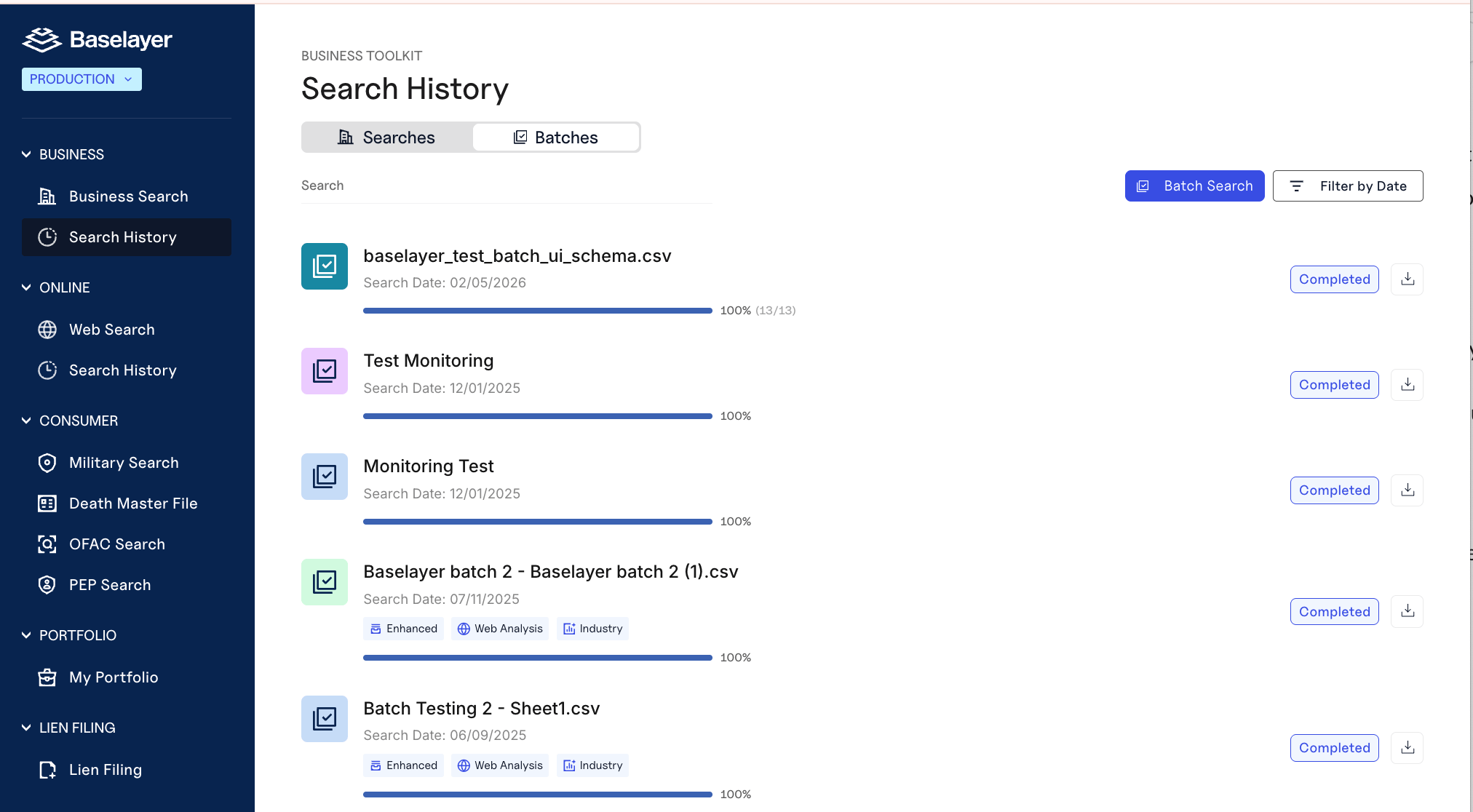
6. Reviewing Batch Results
Console Review
Navigate to Search History → Batches in the Console to view:- Search status (completed, failed, pending)
- Any add-ons applied (Industry, Website Analysis, PEP)
- Basic results (number of searches and number of failed searches)
business_search.csv– Core Business Search resultsbusiness_search.jsonl– Same data in JSON Lines formatREADME.txt– Documentation explaining each file and column structure
website_analysis.csv/.jsonl– If Website Analysis was orderedindustry_prediction.csv/.jsonl– If Industry Prediction was orderedreviews_and_socials.csv– If Reviews & Socials was ordered
search_id as a shared key so you can join data across products.
Note: Selecting Enhanced Search automatically includes Website Analysis and Industry Prediction. Only files for products that were requested will appear in the export.
Export to CSV
Download all batch results as a single CSV file for spreadsheet analysis:- JSONL format (one complete Business Search JSON object per line)
- Served as CSV file (
text/csvmime-type) for easy import into Excel, Google Sheets, or data analysis tools - Each row represents one business search with all fields
- Complex objects (addresses, registrations, officers) are JSON-encoded in single columns
7. Best Practices
Before Running Your Batch
✅ Test with a small sample first - Upload 5-10 rows to verify formatting before submitting your full file ✅ Clean your data - Remove duplicates, standardize address formats, validate TINs before upload ✅ Use the exact template - Download fresh from Console for each batch to ensure you have the latest schemaDuring Batch Execution
✅ Don’t modify the batch - Once submitted, you cannot edit or cancel. Let it complete. ✅ Use Groups for segmentation - Upload different customer segments to different Portfolio Groups for cleaner monitoring ✅ Consider costs - Each row in your batch is billed as an individual Business Search, plus any add-ons selectedAfter Batch Completion
✅ Review failed items - Identify patterns in failures (common: address or TIN formatting issues) ✅ Storebusiness_id - Map batch results to your internal systems for future reference
✅ Use batch monitoring to initialize portfolio - Enable monitoring during batch upload rather than adding businesses individually later
Automation
✅ Use the API for recurring batches - Automate periodic portfolio refreshes or customer onboarding ✅ Integrate with your CRM - Export customer lists directly to Baselayer’s batch format8. Next Steps
Understand batch results:- Business Search: Basics - Interpret search results for each business
- Scores & Ratings - Use KYB and Risk ratings for batch decisioning
- Business Search: Best Practices - Build verification logic for batch results
- Portfolio Monitoring: Basics - Understand continuous monitoring
- Portfolio Monitoring: Best Practices - Configure monitoring for batch-uploaded businesses
- API Reference - Retrieve and filter batch items programmatically
- Exporting PDF Reports - Generate reports for batch results
9. Summary
Batch Search enables large-scale Business Search execution through a single CSV upload. Use it to process thousands of businesses efficiently, add them to Portfolio Monitoring, and maintain consistent verification across your customer base. Key capabilities:- Console or API submission
- Automatic portfolio addition
- Monitoring enablement at scale
- Add-on enrichments (Enhanced, Industry, Website, PEP)
- Asynchronous processing with status tracking